The SQL Server instance specified in SSIS service configuration is not present or is not available. This might occur when there is no default instance of SQL Server on the computer. For more information, see the topic "Configuring the Integration Services Service" in SQL Server 2012 Books online
The developer today was trying to create a new folder in MSDB under the 'Stored Packages' in Integration services. However, he was getting the following error.
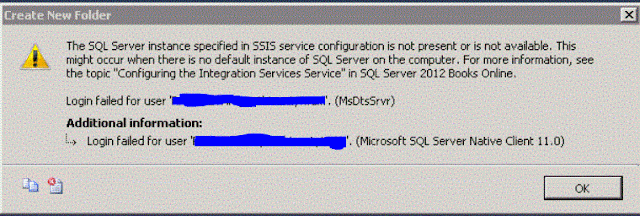
On this server we already had a named instance and Integration Services installed. I had recently created another instance for this developer to use and it looked like when he was trying to create the folder in the MSDB folder he was hitting the wrong database instance.
After some Google searches, I found some support pages that were related to this error.
https://msdn.microsoft.com/en-us/library/ms137789.aspx
https://indepthsql.wordpress.com/2012/03/15/ssis-error-the-sql-server-instance-specified-in-ssis-service-configuration-is-not-present-or-is-not-available-this-might-occur-when-there-is-no-default-instance-of-sql-server-on-the-computer-for-m/
The first step was to find this file called MsDtsSrvr.ini.xml. So I right clicked on Integration Services in SQL Server Configuration Manager and looked at the 'Service' tab. There you will find the 'Binary Path' for the Integration Services. You should be able to find that file under that directory. If not just do a file search.
It is typically located in %ProgramFiles%\Microsoft SQL Server\xxx\DTS\Binn. But depending on where you install the binaries this path will change. If you have a named instance then it will be different.
Edit this file in notepad and look for the following lines.
<Folder xsi:type="SqlServerFolder">
<Name>MSDB</Name>
<ServerName>.\NamedInstance</ServerName>
</Folder>
The item highlighted in Red will be the Database Instance under whose MSDB Database the package is being stored. I found that the packages were being stored in the first named instance that was created on this server. Next I checked the SQL Server error logs and I saw login failed messages related to this developer in the older instance. This confirmed the problem.
There are two solutions to this problem.
1) Edit this file and enter the name of the instance to which this user already has access to.
This would be the new instance that was created.
2) Grant this user full permissions on the MSDB database in the older named instance.
There are pros and cons for both. I decided to edit this file and point to the new instance since no one was using the Integration services and the old instance together. I guess the previous DBA installed the Integration Service when it was not going to be used for long.
The developer today was trying to create a new folder in MSDB under the 'Stored Packages' in Integration services. However, he was getting the following error.
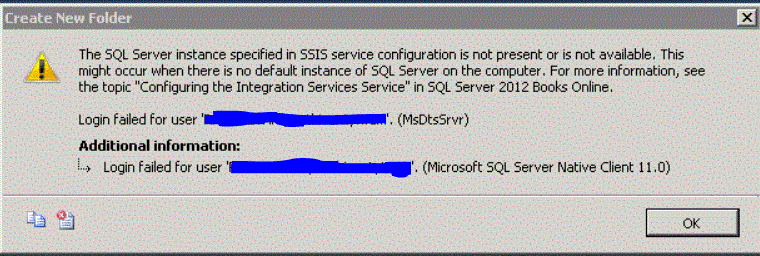
On this server we already had a named instance and Integration Services installed. I had recently created another instance for this developer to use and it looked like when he was trying to create the folder in the MSDB folder he was hitting the wrong database instance.
After some Google searches, I found some support pages that were related to this error.
https://msdn.microsoft.com/en-us/library/ms137789.aspx
https://indepthsql.wordpress.com/2012/03/15/ssis-error-the-sql-server-instance-specified-in-ssis-service-configuration-is-not-present-or-is-not-available-this-might-occur-when-there-is-no-default-instance-of-sql-server-on-the-computer-for-m/
The first step was to find this file called MsDtsSrvr.ini.xml. So I right clicked on Integration Services in SQL Server Configuration Manager and looked at the 'Service' tab. There you will find the 'Binary Path' for the Integration Services. You should be able to find that file under that directory. If not just do a file search.
It is typically located in %ProgramFiles%\Microsoft SQL Server\xxx\DTS\Binn. But depending on where you install the binaries this path will change. If you have a named instance then it will be different.
Edit this file in notepad and look for the following lines.
<Folder xsi:type="SqlServerFolder">
<Name>MSDB</Name>
<ServerName>.\NamedInstance</ServerName>
</Folder>
The item highlighted in Red will be the Database Instance under whose MSDB Database the package is being stored. I found that the packages were being stored in the first named instance that was created on this server. Next I checked the SQL Server error logs and I saw login failed messages related to this developer in the older instance. This confirmed the problem.
There are two solutions to this problem.
1) Edit this file and enter the name of the instance to which this user already has access to.
This would be the new instance that was created.
2) Grant this user full permissions on the MSDB database in the older named instance.
There are pros and cons for both. I decided to edit this file and point to the new instance since no one was using the Integration services and the old instance together. I guess the previous DBA installed the Integration Service when it was not going to be used for long.


