Tuesday, February 20, 2018

SQL Server 2017 on Linux

I have been a DBA on IBM UDB DB2 longer than on SQL Server. So with great pleasure I would like to announce that today I installed SQL Server 2017 on Linux.

I am going to finally able to utilize my Linux skills to administer SQL Server.


I will be writing more blogs about my experience with SQL Server on Linux.

If you guys want to install SQL on Linux then this is a good starting point.
https://docs.microsoft.com/en-us/sql/linux/sql-server-linux-setup

I installed Ubuntu 16.04 on a virtual machine. It took me a couple of attempts before I could figure out what I needed. Hint: after installing Ubuntu, I chose to install 'Ubuntu Desktop'.

Then installed Open-SSH and started the SSH service. Later I installed Putty on my Windows host and using the IP address of the Linux machine I SSHed into it.

This way I would have not to fool around with the virtual machine interface and just work in Putty. For those of you who don't work with Putty, I highly recommend getting used to that because unlike Windows, in Linux environment you will be working via a SSH client like Putty. You will never have a desktop environment for Linux and certainly no RDP.

But the good thing is that once you the server running you can use SSMS or sqlcmd from any other machine to work with SQL Server on Linux.


Friday, December 8, 2017

Login failed. The login is from an untrusted domain and cannot be used with Windows authentication

Login failed. The login is from an untrusted domain and cannot be used with Windows authentication
SSPI handshake failed with error code 0x8009030c, state 14 while establishing a connection with integrated security; the connection has been closed. Reason: AcceptSecurityContext failed. The Windows error code indicates the cause of failure. The logon attempt failed


This error has troubled me so many times. Each time I have to modify my connection string to use LOCALHOST or the port number to resolved but today I finally found a permanent fix.
Thanks to Pinal Dave who wrote this blog post.

https://blog.sqlauthority.com/2017/04/18/sql-server-login-failed-login-untrusted-domain-cannot-used-windows-authentication/

As you know I write this blog for my own documentation so here the fix as per Pinal's instructions.

  • Edit the registry using regedit. (Start –> Run > Regedit )
  • Navigate to: HKLM\System\CurrentControlSet\Control\LSA
  • Add a DWORD value called “DisableLoopbackCheck”
  • Set this value to 1

Tuesday, October 17, 2017

SQL Server 2012/2014: Extended Events to audit statements

Recently I had a request to set up audit for a SQL Server database to capture any DDL statements and any updates to specify tables. For this I could not run a profiler trace all the time so upon some investigation, I decided to use Extended Events to capture these events.

CREATE EVENT SESSION [DDL_Changes] ON SERVER 
ADD EVENT sqlserver.sp_statement_completed(
    ACTION(package0.event_sequence,sqlos.task_time,sqlserver.client_app_name,sqlserver.database_name,sqlserver.nt_username,sqlserver.server_principal_sid,sqlserver.session_nt_username,sqlserver.sql_text,sqlserver.transaction_id,sqlserver.transaction_sequence,sqlserver.username)
    WHERE ((([sqlserver].[username]=N'Theusername') AND ([sqlserver].[like_i_sql_unicode_string]([sqlserver].[sql_text],N'%ALTER TABLE%'))) AND ([sqlserver].[database_name]=N'YourDBName'))) 
ADD TARGET package0.event_file(SET filename=N'H:\MSSQL$MSSQLSERVER\AuditLogs\DDL_Changes.xel',max_file_size=(100),max_rollover_files=(10))
WITH (MAX_MEMORY=4096 KB,EVENT_RETENTION_MODE=ALLOW_SINGLE_EVENT_LOSS,MAX_DISPATCH_LATENCY=30 SECONDS,MAX_EVENT_SIZE=0 KB,
MEMORY_PARTITION_MODE=NONE,TRACK_CAUSALITY=OFF,STARTUP_STATE=ON)
GO

The above CREATE statement is to capture any ALTER TABLE commands that are executed against the database. You can explore to check how you can capture multiple types of SQL_TEXT events.

I would open the Extended Event under 'Management' in SSMS and edit the properties on this event.
You can then right click on the event and start it, to capture all the events.

To can read from the Extended event using the following commands
1) First read the xel file and write the contents to a temp table

IF OBJECT_ID('tempdb..#ExEvent') IS NOT NULL DROP TABLE #ExEvent

SELECT IDENTITY(INT,1,1) AS RowId, object_name AS event_name, CONVERT(XML,event_data) AS event_data
    INTO #ExEvent
FROM sys.fn_xe_file_target_read_file(N'H:\MSSQL$MSSQLSERVER\AuditLogs\DDL_Changes.xel', null, null, null);

2) Then read from this temporary table.

SELECT  RowId, event_name, [sql_text], [username], [database_name], [transaction_id],  [task_time]                  
    FROM (
            SELECT RowId
                    , event_name
                    , T2.Loc.query('.').value('(/action/@name)[1]', 'varchar(max)')AS att_name
                    , T2.Loc.query('.').value('(/action/value)[1]', 'varchar(max)')AS att_value
            FROM   #ExEvent
            CROSS APPLY event_data.nodes('/event/action') as T2(Loc)
            WHERE T2.Loc.query('.').value('(/action/@name)[1]', 'varchar(max)')
                IN ('sql_text', 'username', 'database_name', 'transaction_id',  'task_time')

        ) AS SourceTable
            PIVOT(
                MAX(att_value)
                FOR att_name IN ([sql_text], [username], [database_name], [transaction_id],  [task_time])

        ) AS PivotTable 
order by  [task_time]  desc


You can open the properties of the Event and then play with it to change some of these settings. The most important to remember how you read from the file.

Friday, October 13, 2017

PowerShell script to stop and Start SQL Server Services

As most of you know PowerShell is an amazing tool to perform a lot of Database Administration tasks.
Since last year I have been trying to create PS scripts to make my life easy. One of the tasks that I perform during our annual DR testing is stopping and starting SQL Server Services.
Before you had to login to the DB server, open the SQL Server configuration manager, change the Service Startup method (AUTO or MANUAL) and then stop/start the service. If you had SSRS, SSAS, SSIS or multiple instances then this could take time. Not to forget only the DBAs would do this.

Just like all other DBAs I am pretty lazy. That is why I wanted all my tasks automated so I can work on new features and upgrade my environment. So I wrote this script to Start SQL Server Services. You will have to modify this if you want a script to STOP the services. Also, edit the Get-Service command to display the servicenames in Descending order if you are stopping the services. This is to ensure that you stop the Agent before the engine.

Note: I found a script to change the account that runs the SQL Server services from the following link. I have modifed that script to create this one.
http://blogs.msdn.com/b/amantaras/archive/2014/12/10/powershell-script-to-change-windows-service-credentials.aspx


#This script requires the hostname as the input.
[CmdletBinding()]
Param( [Parameter(Mandatory=$True,Position=1)][string]$Server )

function PowerShell-Wait($seconds)
{
#This function will cause the script to wait n seconds
   [System.Threading.Thread]::Sleep($seconds*4000)
}

$host.PrivateData.VerboseBackgroundColor = "DarkMagenta"

$host.PrivateData.WarningBackgroundColor = "DarkMagenta"

$services=Get-Service -ComputerName $Server -Displayname "SQL*" | Sort-Object -Property Name
write-host "----------------------------------------------------------------"  
write-host "REMEMBER TO RUN THE SCRIPT AS ADMINISTRATOR"  -foregroundcolor "RED" -backgroundcolor "yellow"

write-host "`n Status of SQL Services" -foregroundcolor "green"
Get-Service -ComputerName $Server -Displayname "SQL*" | Sort-Object -Property Name
write-host "`n Services found:"  $services.Count 
Foreach ($servicename in $services)

{
if ($servicename.Name -eq "SQLWriter" -or $servicename.Displayname -eq "SQL Active Directory Helper Service") 

write-host "Skipping service : " $servicename.Displayname -foregroundcolor "RED"
Continue 
}


$startmode = gwmi win32_service -computername $Server | where {$_.Displayname -like $servicename.Displayname} | select StartMode
if ( $startmode.startmode -eq "Disabled")
{
write-host "Service "$servicename.Displayname " is DISABLED so skipping service." -foregroundcolor "RED"
Continue
}


Write-Host "Do you want to Start the service "$servicename.Displayname" on "$Server -foregroundcolor "Yellow" -backgroundcolor "Blue"
$choice = Read-Host -Prompt '[Y/N] :'
if ($choice -eq "Y" -or $choice -eq "YES" -or $choice -eq "Yes" -or $choice -eq "yes" ) 
{
write-host "Starting service: "   $servicename.name -foregroundcolor "green"
write-host "    Attempting to Start de service..." -foregroundcolor "green"
Set-Service -InputObject $servicename -startuptype "Automatic" -Verbose 
Start-Service -InputObject $servicename -Verbose 
PowerShell-Wait (1)
}
Else
{
write-host "Skipping service : " $servicename.Displayname -foregroundcolor "RED"
}
}


write-host "`n Status of SQL Services" -foregroundcolor "green"
Get-Service -ComputerName $Server -Displayname "SQL*" | Sort-Object -Property Name | Format-Table -Property Status, Name , DisplayName -auto  | Out-String

write-host "PROCESS COMPLETED"  -foregroundcolor "RED" -backgroundcolor "yellow"


Error 2601 Severity 14 State 6 Server (SYBASE) Attempt to insert duplicate key row in object 'sysusages' with unique index 'csysusages'

Number (2601) Severity (14) State (6) Server (SYBASE) Attempt to insert duplicate key row in object 'sysusages' with unique index 'csysusages'

As you might notice lately I have been writing a few blogposts related to Sybase errors. Having worked as a DB2 DBA for a long time, I do have good expertise on Linux/UNIX servers. So in my current environment I am the Sybase DBA because the database features is very close to SQL Server.

Anyways, for the last two weeks I have been building a new Sybase server and hence all these errors and posts about them.

Today I was trying to add a new device to the database and alter the database. But I got the above error.
Along with that when I try to find the database size using a query against sysdatabases and sysusages, I get the following error.

And I could not extend the existing database devices. After a lot of troubleshooting I executed the following and fixed my database device issue.

sp_dbremap dbname


Thursday, October 12, 2017

Sybase : Volume validation error: bad magic number EOF1, expected USTH.

Oct 11 22:36:58 2017: Backup Server: 6.35.2.2: Volume validation error: bad magic number EOF1, expected USTH.

Oct 11 22:36:58 2017: Backup Server: 6.32.2.3: compress::/sybase/dump/Database.20171011.14.DB::013: volume not valid or not requested (server: , session id: 72.)

Currently, I am working on migrating a Sybase server to a new host and I installed a higher version of Sybase on that host. When I tried to LOAD the Database DUMP from the current server I got the above error.

All the help that I got online pointed towards the cause being that the version where I took the backup was at a higher level than where I was loading to. But that was not the case.

Then I started working on a uncompressed dump file that seemed to do the trick. However, the production database was so large that I didn't have enough disk space to take an uncompressed dump file.
So next I tried to use the native option for compression in the LOAD command

dump database mydb "/sybase/dump/database.dmp"
with compression = "9"

This seemed to do the trick. I had actually dumped to multiple stripes so I had to modify the above command.

To test this further I tried it without the compression option that too seemed to work.
So try this too

dump database mydb "/sybase/dump/database.dmp"

Friday, October 6, 2017

Sybase: Change SA password

Sometimes, when DBAs don't follow proper documentation they end up in situations where they don't know the SA password. This has to be the most fatal mistake for a DBA. Fortunately, in Sybase there is a way to change SA password if you don't have it.

1.      Stop the Sybase Server.
2.      Locate the RUN_SPS_XXXXXX file. It is typically located in the $SYBASE/ ASE-15_0/INSTALL/ directory.
3.      Open the RUN_SPS_XXXXXX file.
4.      Add the following command line option to the end of the command line  “ -psa”

Note: This option is case sensitive, should be lowercase, and entered without quotes.
New SSO password for sa:XXXXXXXXXXXXXX
Note: You may have to scroll up to find this line.

5.      Run startserver -f RUN_SPS_XXXXXX to start the Sybase Server. Startup messages you would normally see in the errorlog will be printed to the screen.
6.      After a few minutes, when the startup messages have stopped printing to the screen, look for a line similar to the following within the startup messages:
7.      Attempt to log into the Sybase Server using Sybase Central or SQL Advantage with the new password. You should be able to login without any errors. If not, please contact the SPS Help Desk.
8.      Once you are logged in, update the password for the sa account.
9.      Logout of Sybase Central or SQL Advantage.
10.    Shutdown the Sybase Server.
11.    Edit the RUN_SPS_XXXXXX again to remove the -psa option then save it.
12.    Restart the Sybase Server. 

Wednesday, April 19, 2017

Error: 18456, Severity: 14, State 38

Login failed for user [User]
Error: 18456, Severity: 14, State 38

I have seen this error multiple times and typically it involves creating a user for that login.
However, today I noticed this on a new server that I configured as a Disaster Recovery.

State 38 means 'Login valid but database unavailable (or login not permissioned)'.
I noticed that on production this account was listed as the DB OWNER since this was used to create the database. Hence, I didn't have to explicitly create the user in the database.

However, on the DR server I had to create this user in the database and grant it dbowner.
When we failed back we had the same error so I was puzzled. Since this account was working fine before we failed over to DR. So there was no way it would not work after we crawl back to PROD.

I noticed that there are multiple ways I can fix this error.

1) Create the user and grant dbowner to the user.
2) Else execute the sp_changedbowner and make this use the owner. This will give implicit permissions on the database.

Error: 17806, Severity: 20, State: 2.

Error: 17806, Severity: 20, State: 2.
SSPI handshake failed with error code 0x8009030c while establishing a connection with integrated security; the connection has been closed. [CLIENT: xxx.xxx.x.x]

Error: 18452, Severity: 14, State: 1.
Login failed for user ”. The user is not associated with a trusted SQL Server connection. [CLIENT: xxx.xxx.x.x]

SQL Server 2012/2014

I have seen several types of login errors but this one seems to be a confusing one. Today while trying to connect from a third party I noticed that I had three options for Authentication


  • SQL Server Authentication
  • Windows Authentication
  • NTLM2 Windows Authentication

When I tried using just 'Windows Authentication' I got the above error, so I created the login explicitly and it worked. But then I tried to use the 'NTLM2 Windows Authentication' the login was successful. To confirm this I ran the below query to confirm that SQL Server was using NTLM authentication. I was connected from a client when I ran this query.

SELECT DISTINCT auth_scheme FROM sys.dm_exec_connections

So lesson for today is to use NTLM authentication when you get this error. However, I am going to investigate what client I can use which has this authentication option.


Thursday, April 6, 2017

The EXECUTE permission was denied on the object 'sp_enable_sql_debug', database 'mssqlsystemresource', schema 'sys'. (Microsoft SQL Server, Error: 300)

SQL Server 2008 R2/2012/2014/2016

Today a developer contacted me to get this error fixed. He was trying to debug the query from SSMS. When I tried to do that as a SYSADMIN I got the following error

To continue debugging, the firewall needs to be configured. 
Configuring the firewall requires elevated privileges.

To resolve the second error I had to login to the server and not try this remotely. But the first error still persisted for the a non privileged user.

Even after granting EXECUTE on that SP, the user was still complaining on that error. After some investigation I came to know that this is by design and only SYSADMINs can run the queries in debugging mode. This doesn't make sense to me but I guess I have no option. I am going to try this from Visual Studio and see if I can debug.

Following are some of the references for this info. 
https://connect.microsoft.com/SQLServer/feedback/details/351698/msit-mso-debugging-sql-query-fails-with-an-error-the-execute-permission-was-denied-on-the-object-sp-enable-sql-debug

https://msdn.microsoft.com/en-us/library/w1bhybwz(VS.80).aspx

http://www.sqlserver-dba.com/2012/09/sql-server-user-could-not-execute-stored-procedure-sp_enable_sql_debug.html

Wednesday, October 26, 2016

Restore the missing Windows Installer cache files SQL Server service pack upgrade

The cached MSI file 'C:\Windows\Installer\******.msi' is missing.
Its original file is 'sql_engine_core_inst_loc.msi' and it was installed for product 'SQL Server 2008 R2 Database Engine Services' 
from 'E:\en_sqlserver2008r2ent_x86_x64\1033_ENU_LP\x64\setup\sql_engine_core_inst_loc_msi\'

This error typically occurs when you are trying to install a service pack for a SQL Server instance. The reason for this is simple and I am not sure why Microsoft won't fix it. This is more to do with the Windows installation methods.

Typically the SP file that you download is an executable like SQLServer2008R2SP3-KB2979597-x64-ENU.exe
When you run this it will temporarily extract the files to a directory with weird names like
accb93ea9c80345f38c8b49a3c
efe153398dc16fa539a10f08451096f0

The windows admins might clean up these directories at some later point and this causes the above error. No one should clean up these drives or C:\Windows\Installer. Now that these files are not available you will have to retrieve them from the installation media. Typically you will need the installation files for the SQL Server version and all subsequent SPs and hotfixes that were applied. The steps to retrieve them have been described here
https://support.microsoft.com/en-us/kb/969052

To fix the error do the following

  • Download the file FindSQLInstalls.vbs from the Microsoft support page and then run the following command
  • Cscript FindSQLInstalls.vbs %computername%_sql_install_details.txt
  • Check the text file and following is an example of one file that is missing and how to resolve it
============================================================

PRODUCT NAME   : SQL Server 2008 R2 SP2 BI Development Studio
============================================================
  Product Code: {312E8540-0799-45D5-A02E-DFB8FCA93CCA}
  Version     : 10.53.6000.34
  Most Current Install Date: 20160310
  Target Install Location: 
  Registry Path: 
  HKEY_CLASSES_ROOT\Installer\Products\0458E21399705D540AE2FD8BCF9AC3AC\SourceList
     Package    : sql_bids.msi
  Install Source: \x64\setup\
  LastUsedSource: n;1;Y:\DBATeam\SQLSERVER\SQL Server 2008\SQL_SERVER_2008_R2\x64\setup\
 
 !!!! sql_bids.msi DOES NOT exist on the path in the path Y:\DBATeam\SQLSERVER\SQL Server 2008\SQL_SERVER_2008_R2\x64\setup\ !!!!
  Action needed, re-establish the path to Y:\DBATeam\SQLSERVER\SQL Server 2008\SQL_SERVER_2008_R2\x64\setup\
 Installer Cache File: C:\Windows\Installer\2be74f.msi
  !!!!!!!!!!!!!!!!!!!!!!!!!!!!!!!!!!!!!!!!!!!!!!!!!!!!!!!!
 !!!! C:\Windows\Installer\2be74f.msi DOES NOT exist in the Installer cache. !!!!
 !!!!!!!!!!!!!!!!!!!!!!!!!!!!!!!!!!!!!!!!!!!!!!!!!!!!!!!!
 
     Action needed, recreate or re-establish path to the directory:
       Y:\DBATeam\SQLSERVER\SQL Server 2008\SQL_SERVER_2008_R2\x64\setup\then rerun this script to update installer cache and results
     The path on the line above must exist at the root location to resolve
     this problem with your msi/msp file not being found or corrupted,
     In some cases you may need to manually copy the missing file or manually
     replace the problem file overwriting it is exist: 
      Copy "Y:\DBATeam\SQLSERVER\SQL Server 2008\SQL_SERVER_2008_R2\x64\setup\sql_bids.msi" C:\Windows\Installer\2be74f.msi

============================================================

Look for the line where it says LastUsedSource. This is where SQL Server expects the file to be. So in my case I had to copy the installation media for SQL Server 2008 R2 to 

Y:\DBATeam\SQLSERVER\SQL Server 2008\SQL_SERVER_2008_R2

You can create this directory or map the directory where the files exists.
If you rerun the vbscript again you will see messages like this
 
============================================================
PRODUCT NAME   : SQL Server 2008 R2 SP2 BI Development Studio
============================================================
  Product Code: {312E8540-0799-45D5-A02E-DFB8FCA93CCA}
  Version     : 10.53.6000.34
  Most Current Install Date: 20160310
  Target Install Location: 
  Registry Path: 
   HKEY_CLASSES_ROOT\Installer\Products\0458E21399705D540AE2FD8BCF9AC3AC\SourceList
     Package    : sql_bids.msi
  Install Source: \x64\setup\
  LastUsedSource: n;1;Y:\DBATeam\SQLSERVER\SQL Server 2008\SQL_SERVER_2008_R2\x64\setup\
 
    sql_bids.msi exists on the LastUsedSource path, no actions needed.
 
Installer Cache File: C:\Windows\Installer\2be74f.msi
============================================================

Notice it says 'no actions needed'. The Vbscript will copy the corresponding msi files to the C:\Windows\Installer directory

If the msi file belongs to a service pack installation then you will see something like this.
 
SQL Server 2008 R2 SP2 BI Development Studio Patches Installed 
--------------------------------------------------------------------------------
 Display Name:    Hotfix 2806 for SQL Server Business Intelligence Development Studio 2008 (64-bit) (KB2659694)
 KB Article URL:  http://support.microsoft.com/?kbid=2659694
 Install Date:    20120702
   Uninstallable:   1
 Patch Details: 
   HKEY_CLASSES_ROOT\Installer\Patches\1C168ABFC95177B41873A43674A1BAFF
   PackageName:   sql_bids.msp
    Patch LastUsedSource: n;1;r:\8e04aef200a6f6509400f3f8270e52\x64\setup\
   Installer Cache File Path:     C:\Windows\Installer\e21fb.msp
     Per SOFTWARE\Microsoft\Windows\CurrentVersion\Installer\UserData\S-1-5-18\Patches\1C168ABFC95177B41873A43674A1BAFF\LocalPackage
 
!!!! C:\Windows\Installer\e21fb.msp package DOES NOT exist in the Installer cache. !!!!
 
     Action needed, recreate or re-establish path to the directory:
       r:\8e04aef200a6f6509400f3f8270e52\x64\setup\ then rerun this script to update installer cache and results
     The path on the line above must exist at the root location to resolve
     this problem with your msi/msp file not being found or corrupted,
     In some cases you may need to manually copy missing files or manually
     replace the problem file, 
 
     Copy "r:\8e04aef200a6f6509400f3f8270e52\x64\setup\sql_bids.msp" C:\Windows\Installer\e21fb.msp

Note the KB2659694 and if needed download it which in my case was SQLServer2008R2-KB2659694-x64.exe

Now on command line extract/uncompress the files using this exe to a temporary directory. The option /x is to uncompress the file to a directory.

SQLServer2008R2-KB2659694-x64 /x

Once you have uncompressed the files copy the directory to the location where the files are expected and rename it to whatever directory it expects. In the above example it expects the following directory
r:\8e04aef200a6f6509400f3f8270e52

So copy the uncompressed directory for this SP to R: drive and rename the directory. You can confirm that the files is there by going to 
"r:\8e04aef200a6f6509400f3f8270e52\x64\setup" 

Rerun the vbscript and confirm that for the files it says that msi file exists and no actions are needed.
Copy the entire installation directory and not individual files like they mention in the support page.

You might have to do this for the following
  • SQL Server installation media
  • Service pack files that were applied
  • Hotfixes that were applied.


Monday, October 17, 2016

SQL Server 2008 R2/2012/2014 Security Policies

After installing SQL Server and creating the instance you need to focus on the security features and options that are available to you. I have created a set of standards that all DBAs have to follow in my team after creating the instance. Following are the details.

Service Account

  • Change the SQL Server Service account to a domain account. 
  • This should not have admin rights on the server.
  • Use one AD account for the database engine service and another one for the agent service.
  • Use unique AD Account for each database engine but use the same account for all agent services in your environment. If you have jobs that access databases across different hosts then this is required. 

Port Number

  • Change the port number on which you runt he SQL Server service. This prevents from attackers in attacking on the default port.

Authentication

  • If possible do not enable SQL authentication. I prefer Windows authentication for all logins. 
  • If you have to enable SQL Authentication then make sure that you disable the SA account.

Audit

  • Enable both Successful and failed logins to be audited. You can do this under properties for the SQL Server Instance.

Password Policy

  • If you are creating logins using SQL Authentication then you have to enable the  'Enforce Password Policy'. This will ensure that the passwords that users set will have to comply with the Windows password policies. This will typically require 8 or more characters and a combination of several types of characters.
  • Enforce Password Expiration policy so that users are forced to change passwords every 90 days or so. You can check the policy in Windows to find out the expiration days.

Account types and roles

  • As much as possible refrain from creating logins for individuals. 
  • Create logins for AD groups so that you don't have to keep adding new logins. Once a new AD account is added to a group they will inherit the permissions for that group.
  • Create roles that you would know will be used in the database and added logins to those roles. It is easier to modify roles and modify permissions for everyone in that group, rather than doing this for each login.

Monitoring

  • Set up alerts to monitor failed logins.
  • Set up jobs to check on all the accounts that have expired passwords or if the accounts are locked.
If possible script out all of these and run the script once after you finish the install. This way you will never forget any of the above points.

Wednesday, September 14, 2016

Cannot get the column information from OLE DB provider "OraOLEDB.Oracle" for linked server ""

Msg 7399, Level 16, State 1, Line 1
The OLE DB provider “Microsoft.ACE.OLEDB.12.0” for linked server “(null)” reported an error. Access denied.
Msg 7350, Level 16, State 2, Line 4
Cannot get the column information from OLE DB provider "OraOLEDB.Oracle" for linked server "<Linked_Server>"

I was setting up a linked server to an Oracle database and I was able to connect from that server using the sqlplus client. So the client and all the hostname/port information was correct. Even the login was working just fine so was not sure what the 'Access denied' error is related to. I didn't see any message in the alert log on the Oracle server. So as usual after a couple of quick google searches I found the solution.

To resolve this go under Security in Management studio go to Server Objects > Linked Servers ? Providers

Right click on 'OraOLEDB.Oracle' and go to General. There enable 'Allow inprocess' and this should fix the problem.


Friday, September 9, 2016

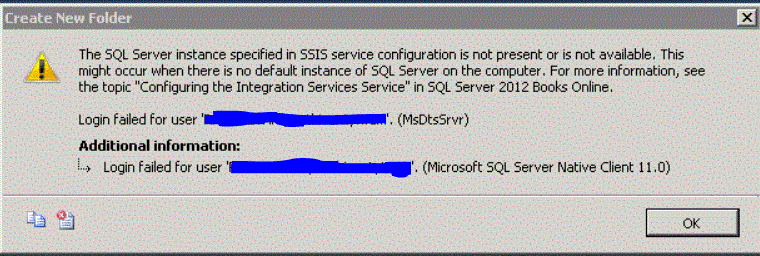
Login failed for user xxxxxxxxx. (MsDtsSrvr)

The SQL Server instance specified in SSIS service configuration is not present or is not available. This might occur when there is no default instance of SQL Server on the computer.  For more information, see the topic "Configuring the Integration Services Service" in SQL Server 2012 Books online

The developer today was trying to create a new folder in MSDB under the 'Stored Packages' in Integration services. However, he was getting the following error.


On this server we already had a named instance and Integration Services installed. I had recently created another instance for this developer to use and it looked like when he was trying to create the folder in the MSDB folder he was hitting the wrong database instance.

After some Google searches, I found some support pages that were related to this error.
https://msdn.microsoft.com/en-us/library/ms137789.aspx
https://indepthsql.wordpress.com/2012/03/15/ssis-error-the-sql-server-instance-specified-in-ssis-service-configuration-is-not-present-or-is-not-available-this-might-occur-when-there-is-no-default-instance-of-sql-server-on-the-computer-for-m/

The first step was to find this file called MsDtsSrvr.ini.xml. So I right clicked on Integration Services in SQL Server Configuration Manager and looked at the 'Service' tab. There you will find the 'Binary Path' for the Integration Services. You should be able to find that file under that directory. If not just do a file search.

It is typically located in %ProgramFiles%\Microsoft SQL Server\xxx\DTS\Binn. But depending on where you install the binaries this path will change. If you have a named instance then it will be different.

Edit this file in notepad and look for the following lines.

<Folder xsi:type="SqlServerFolder">
      <Name>MSDB</Name>
      <ServerName>.\NamedInstance</ServerName>
    </Folder>

The item highlighted in Red will be the Database Instance under whose MSDB Database the package is being stored. I found that the packages were being stored in the first named instance that was created on this server. Next I checked the SQL Server error logs and I saw login failed messages related to this developer in the older instance. This confirmed the problem.

There are two solutions to this problem.
1) Edit this file and enter the name of the instance to which this user already has access to.     
     This would be the new instance that was created.
2) Grant this user full permissions on the MSDB database in the older named instance. 

There are pros and cons for both. I decided to edit this file and point to the new instance since no one was using the Integration services and the old instance together. I guess the previous DBA installed the Integration Service when it was not going to be used for long.


Tuesday, June 28, 2016

SQL Server 2012: The server could not load the certificate it needs to initiate an SSL connection

      Error: 25641, Severity: 16, State: 0.
      For target, "5B2DA06D-898A-43C8-9309-39BBBE93EBBD.package0.event_file", the parameter "filename" passed is invalid. Target parameter at index 0 is invalid
      Error: 25710, Severity: 16, State: 1.
      Event session "system_health" failed to start. Refer to previous errors in the current session to identify the cause, and correct any associated problems.
      Error: 25709, Severity: 16, State: 1.

      Failed to verify Authenticode signature on DLL 'd:\MSSQL11.testinstance\MSSQL\Binn\ftimport.dll'.

     The server could not load the certificate it needs to initiate an SSL connection. It returned the following error: 0x8009030d. Check certificates to make sure they are valid.
     The resource database build version is 11.00.6020. This is an informational message only. No user action is required.
     Error: 26014, Severity: 16, State: 1.
     Unable to load user-specified certificate [Cert Hash(sha1) "A607AA6FB12C3DC3BFFCF46EDC3CB2B3C0EC7FA2"]. The server will not accept a connection. You should verify that the certificate      is correctly installed. See "Configuring Certificate for Use by SSL" in Books Online.
     Error: 17182, Severity: 16, State: 1.
     TDSSNIClient initialization failed with error 0x80092004, status code 0x80. Reason: Unable to initialize SSL support. Cannot find object or property. 
     Error: 17182, Severity: 16, State: 1.
     TDSSNIClient initialization failed with error 0x80092004, status code 0x1. Reason: Initialization failed with an infrastructure error. Check for previous errors. Cannot find object or      property. 
     Error: 17826, Severity: 18, State: 3.
     Could not start the network library because of an internal error in the network library. To determine the cause, review the errors immediately preceding this one in the error log.
     Error: 17120, Severity: 16, State: 1.
     SQL Server could not spawn FRunCommunicationsManager thread. Check the SQL Server error log and the Windows event logs for information about possible related problems.

I have this server where SSL encryption is enabled. I had a certificate installed on this server and FORCED ENCRYPTION enabled.

But today I received the following error while restarting the SQL Server services.
Although the error points to some issue with the certificates, what it doesn't mention is the the account running the services is not part of the ADMIN group. 

I had just changed the SQL Server services to run under a different account and all I had to do was add that to the ADMINISTRATORS group and I was able to restart the SQL Server.

Thursday, April 21, 2016

This may be due to a connection failure, timeout or low disk condition within the database. For more information about this error navigate to the report server on the local server machine, or enable remote errors.

SQL Server 2008 R2/2012/2014: ReportServer error report Subscription error

This may be due to a connection failure, timeout or low disk condition within the database.
(rsReportServerDatabaseError)
For more information about this error navigate to the report server on the local server machine, or enable remote errors.

The EXECUTE permission was denied on the object 'sp_help_category', database 'msdb', schema 'dbo'.


As part of our new security policies, I had to revoke permissions from the PUBLIC group. Also, I had to revoke SYSADM authority from certain users. This is typical when the application group requests highest authority since they don't want to spend the time to find what permissions are actually required by the application.

After the permissions were revoked, the users reported that above errors when they were trying to add subscriptions to the reports in SQL Server Reporting services.

But the message didn't mention that the error was or what permissions were missing.. To identify the error you have to complete the following two steps to identify the error.

1) Set the 'EnableRemoteErrors' configuration in the ReportServer to TRUE. This will show the exact error in the error log file for ReportServer.
To do this connect to ReportServer instance from SQL Server Management studio and right click on the server and go to Properties.
Then go to the ADVANCED and set the parameter EnableRemoteErrors to True.
You can find the current value by running the following command against the database server.

Use ReportServer
select * from dbo.ConfigurationInfo
where Name ='EnableRemoteErrors'

Once you make this change, you might have to restart the Report server instance to complete the change. Now redo the task that you were trying to complete in the Reports page.

Now check the error file in the ReportServer error log directory.

This will display the exact message in the file. In our case, I saw the following two messages.

This may be due to a connection failure, timeout or low disk condition within the database. ---> System.Data.SqlClient.SqlException: The SELECT permission was denied on the object 'syslogins', database 'mssqlsystemresource', schema 'sys'

This may be due to a connection failure, timeout or low disk condition within the database. ---> System.Data.SqlClient.SqlException: The EXECUTE permission was denied on the object 'sp_help_category', database 'msdb', schema 'dbo'.

This clearly shows what permissions are missing. However, we still don't know which user requires these permissions. So get that information run the SQL Server profile which is the second step.

2) Run the SQL Server Profiler to capture the exact message. But as always remember that SQL Server profiler is a very powerful tool and if you capture all the events then you can potentially bring down the server and also collecting too many events will make the analysis very difficult.

So open SQL Server Profiler and capture the event called 'User Error Message' in 'Errors and warnings'


Once you run the profiler, you can try to execute the same task in Reporting Services and try to recreate the error. In my case, I captured the event 'Audit Schema Object Access Event' but that didn't help much so you can avoid that event.


You can see the same error being reported here as well. If it was a permissions issue then for that given record you will see the value 229 in the column for 'Error' in profiler. Now look int he column for 'LoginName' and you should be able to find the name of the login that is missing that permission.

Lastly, grant that permission and see if that fixes the error. However, I always recommend to grant only the permission required and not dbowner or SYSADM.


Friday, June 26, 2015

Sybase 15.7: Add new device and extend the database

As mentioned in my previous post I have been working on Sybase databases too. Firstly, let me tell you how similar they are and it's relatively easy transition for someone who knows SQL Server and can work around in a UNIX environment.

One of my first problems that I had to resolve was to increase the size of a database that was getting full.

Looks like you have to first create a physical device/file before assigning it to the database. So I following the commands.


1) First add a new device
    USE master
    go
    DISK INIT
    NAME='GLUT_UDL04',
    PHYSNAME='/home/dump/sybase_dump/sybdata/GLUT_UDL04.dat',
    VDEVNO=18,
    SIZE='30G',
    VSTART=0,
    CNTRLTYPE=0,
    DSYNC=FALSE
    go

2) Then Alter the database and add this device.

    ALTER DATABASE SYBPR
    ON GLUT_UDL04='9215M'
   WITH OVERRIDE
    go

Oracle 11g" Java version 1.5.0_17 not supported sql developer

Enter the full pathname for java.exe

I started working for a new company and here I am on a team which supports Oracle and Sybase database along with SQL Server databases. So going forward you might see some blog posts from those database platforms as well.

Java version 1.5.0_17 not supported sql developer

So as part of setting up my workstation I was installing SQL Developer to work with the Oracle databases. But it could not find the Java JDK path. So I first set it to the following

C:\Oracle\product\11.2.0\client_1\jdk

Then I got the error that the Java version was not supported. After some quick google searches I found that we need to set this to the Java in the path similar to the following one.

C:\Program Files\Java\jdk1.8.0_45

If the error is related to the full path of java.exe then find where you have javac.exe on your workstation.

Mine was in C:\Oracle32\product\11.2.0\client_1\jdk\bin

But you should only enter the path for the JDK directory so exclude the 'bin' at the end.

So I entered C:\Oracle32\product\11.2.0\client_1\jdk


Friday, May 22, 2015

SQL Server 2005/2008/R2/2012: Cannot connect to WMI provider. You do not have permission or the server is unreachable. Invalid class[0x80041010]


“Cannot connect to WMI provider. You do not have permission or the server is unreachable. Note that you can only manage SQL Server 2005 and later servers with the SQL Server Configuration Manger.
Invalid class[0x80041010]”


Saw this message when I tried to open SQL Server Configuration manager. With a quick search on Google led me to this website.

http://tritoneco.com/2014/05/15/fix-sql-configuration-manager-cannot-connect-to-wmi-provider/

So ran the following command and that fixed the problem.

cd "C:\Program Files (x86)\Microsoft SQL Server\110\Shared\mofcomp sqlmgmproviderxpsp2up.mof"

You can search the location of the file sqlmgmproviderxpsp2up.mof based on what version of SQL Server is installed.

My guess is that this was due to the fact that I had both SQL Server 2008 R2 and 2012 installed. But that is just speculation.


Friday, May 8, 2015

SQL Server 2008/2012: Automate restore all transaction log backup files

Hi,
It's been a long time since I posted something on this blog. Had been working a lot on the IBM DB2 databases for the last couple of years. So it was business as usual in SQL Server. Hence, nothing noteworthy in SQL Server to blog about. But here's one script that saved me several hours yesterday.

On one of my servers we had to recover 10 databases using last night's full backup and all subsequent log backups. So in the middle of the night it was going to be huge challenge to manually pick every log backup file to restore.

So wrote this script to create commands to RESTORE log backup files which can be then run in a query window.

Please follow the instructions below to use the script.

1) Set the database name to the variable @dbname
2) Copy all the transaction log backups to a new directory. You can choose to start copying the files
    that  were taken a few minutes before the full backup was taken. You can choose to copy the last
    file you want to be restored based on the recovery point of time.
3) In the following line set the directory where you copied the log backup files to.

    insert into #dir
    exec xp_cmdshell 'dir "C:\Backup\Adventure*.trn" /b'

4) In the following line set the directory to where the log backup files have been copied.
SET @cmd='use master; RESTORE LOG ['+@dbname+'] FROM  DISK = 
        N''C:\Backup\'+@filename+''' WITH  FILE = 1,  NORECOVERY,  NOUNLOAD,  STATS = 10'
select (@cmd)

5) Copy the output which should have the RESTORE commands and run them in a new query    
    window.
6) Lastly run the following command to bring the database out of restoring state.

RESTORE DATABASE dbname WITH RECOVERY

############################################################################
use master
set nocount on
DECLARE @filename varchar(2000), @cmd varchar(8000), @dbname varchar(100)

-----------------------Enter the Database name in the next line
SET @dbname='New'

IF  EXISTS (SELECT name FROM tempdb.sys.tables WHERE name like '#dir%') 
begin
   DROP table #dir
end
create table #dir (filename varchar(1000))

-----------------------Enter the path to TRN File in the xp_cmdshell line
insert into #dir
exec xp_cmdshell 'dir "C:\Backup\Adventure*.trn" /b'

delete from #dir where filename is null
DECLARE filecursor CURSOR FOR 
select * from #dir order by filename asc

OPEN filecursor
FETCH NEXT FROM filecursor INTO @filename 

WHILE @@FETCH_STATUS = 0 
BEGIN
SET @cmd='use master; RESTORE LOG ['+@dbname+'] FROM  DISK = N''C:\Backup\'+@filename+''' WITH  FILE = 1,  NORECOVERY,  NOUNLOAD,  STATS = 10'
print @cmd
FETCH NEXT FROM filecursor INTO @filename
END 
CLOSE filecursor  
DEALLOCATE filecursor
drop table #dir

############################################################################